

Inside MKS DTECH's Rhino Sync and Nessie: Shared Rhino Models and Revit Data in the Browser
The TRXL Feature Spotlight is a live, hands-on stream. A company that builds a tool shows what it does, with a person who knows it inside and out driving the demo, and I react as a practitioner. This one was with Mauro Sabiu and Mikael Santrolli, the co-founders of MKS DTECH, a London design technology company started by architects. Both of them came out of practices like Zaha Hadid Architects and Foster + Partners, and they founded the company in 2019.
They showed two tools. Rhino Sync lets several people work in the same Rhino file at the same time. Nessie pulls Revit project data into a browser so BIM managers and document controllers can see it, edit it, and automate around it. I wanted to see both because they go after two things I've watched firms struggle with for years: splitting a model into pieces and merging it back together, and not knowing what's happening across a pile of Revit files.
Mauro opened with a quick overview. MKS DTECH's flagship product is BEAM, which adds BIM objects and data to Rhino and exports to Revit and IFC. It was first released in 2020, and Mauro said it has pushed six billion objects through export and is used in more than 100 countries. Rhino Sync and Nessie are the newer pair, and Mikael ran the live demos.
Watch the Replay
Rhino Sync: several people, one Rhino file
Mauro compared the idea to a central model in Revit, with the difference that this is a Rhino file. One person works on the facade, another on the core and shell, someone else on the landscape, and the end result is a single central file ready to hand to consultants. He was clear that this is not worksessions, which are closer to links in Revit.
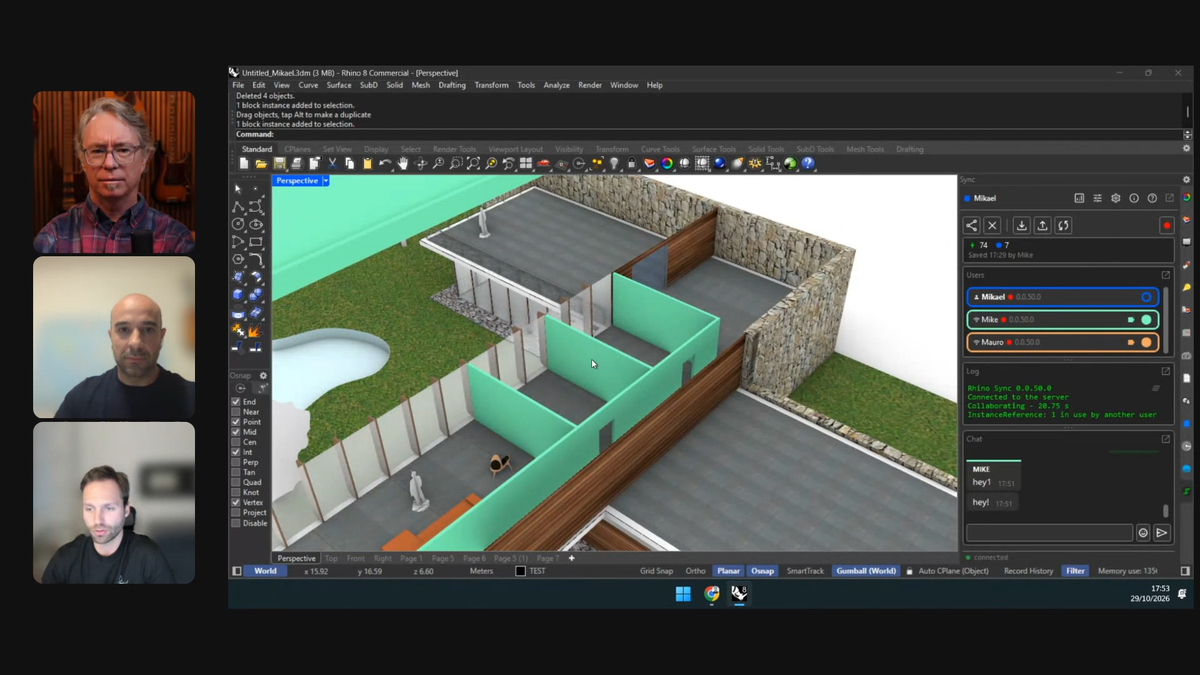
Mikael's demo started in Google Drive, though the storage can also be a network disk, OneDrive or Dropbox. When you join, Rhino Sync makes a local copy of the central file on your machine. A panel shows who is in the file, which version they're on, and a dot that tells you whether they're broadcasting live changes.
There are three speeds of collaboration, and that was the part I found most practical:
- Live preview. Mikael turned on his teammates' cameras and watched them move around the model, then turned on per-user coloring to see exactly what they were touching. Each change is owned by whoever made it. When he tried to select a wall Mike was editing, Rhino Sync wouldn't let him.
- Quick changes. This is a new mode that syncs only the delta. Mauro pushed his quick changes, Mikael pulled 15 objects, reloaded, and the trees were his to move. Saving the central file is the slow step. Mikael said a one-gigabyte file can take two minutes to synchronize, which is the pain quick changes are meant to avoid.
- Sync. When the team is happy, sync compiles everything into the final 3DM in your storage.
It isn't only geometry. Layers synced in the demo, and the locking system also covers materials and other Rhino objects. Mikael said layouts have been supported for the last two or three weeks, with the layout order still unsolved. Every panel is detachable if you have multiple screens.
Rhino Sync and who can see what
I asked about the chat, since people may want to go back and find when a decision was made. Mikael said the chat used to be live only. Now the last 100 messages are encrypted to your session, optional if you'd rather not, and MKS DTECH has no visibility into them. Change packets are encrypted to the session as well and stored only for a few minutes or as long as the session lasts.
The same thinking applies to the file. Rhino Sync produces a normal 3DM, there's nothing different about it, and MKS DTECH doesn't store the data.
A viewer in the YouTube chat asked about "who did what and when," and I added why. There is no ledger beside the 3DM yet. Mikael said a history mode is planned, possibly with a comment when you sync, and in network mode every synchronization is already saved as its own 3DM.
Two uses I hadn't thought of came up. HGA has a project lead who stays in Rhino without modeling, watches what everyone is doing, and sends screenshots and comments instead of opening a read-only file. I compared it to watching someone play a video game on YouTube, except it's a model being built. And Mikael said the heaviest adoption they've seen is in US universities, where a studio can share a large site context model. My reaction to that one: don't touch my model, Mikael.
Nessie: Revit project data in a browser
Nessie was developed with Heatherwick Studio, and Mauro described three pillars: monitoring, data consistency, and automation. The demo used sample projects and fake users, which Mikael pointed out up front.
The monitoring side starts with a project list you can tag, group by typology, sort by last activity, and view on a map. A live tab shows who is working in which file right now, on cloud and network files alike. Mikael said an older live-monitoring view stopped working when teams moved to Forma and BIM 360, and Nessie brings it back. Sessions show how long Revit was open and how often someone synchronized, which helps you catch the person who leaves Revit open for days.
Inside a project, a few things stood out:
- Warnings and standards. You can change the severity of Revit warnings or hide the ones you don't care about, and you can set up the INI files from the browser so they apply when Revit opens. Mikael called that a massive pain point for IT teams who otherwise script and republish every change.
- Forma connection. Nessie matches Revit sheet IDs to the published sheets in Forma. I was struck by how much was visible with no Revit or Forma session open. Schedules sync too, so a door schedule is one export to Excel instead of waiting two or three minutes for the file to open. Data goes up when someone opens or syncs a model, in under about 20 seconds for a 300 to 400 megabyte file, so you're reading the last sync, not the live model.
- Link diagram. Green files are in Nessie and blue files are external links. I said it's useful as a diagram for understanding what's going on.
- Editing sheets, revisions and rooms. You can pin several files, edit sheet values, export to Excel, re-import, and see what's pending until the next sync. Rooms follow the same workflow, plus a 3D viewer that colors by a parameter like occupancy so a room with no value stands out.
- Analytics. File size, groups and families over time, so you can see when something ballooned.
Automation in Forma
Nessie can publish files on a schedule, then print sheets from that publish. If syncs are newer than the last publish, it publishes first, and the PDFs land in a folder in Forma every morning. Two token-based functions were also shown: IFC export, and issuing files, which Mikael described as a mini transmittal that sends consultants a stripped-down set on a schedule.
Practical notes
- Rhino Sync is in beta and free to use. Mikael said they released version 50 the day of the stream and documented the workflow in a wiki.
- Nessie data hosting. MKS DTECH offers managed storage in isolated databases for each tenant, or you can bring your own server by connecting your Azure or AWS storage and SQL server.
- Revit side. Edits made in the browser are written back to Revit. Sheets and revisions work now, rooms are in development.
- Demo data. The Nessie figures in the demo were sample data, not customer results.
Where to see it
Download Rhino Sync free during the beta at mksdtech.com/sync. To see Nessie, request a demo at mksdtech.com/nessie. Everything else is at mksdtech.com, and the full stream is on YouTube.