

Inside D5 Render's New Cesium Integration and AI Material Generator
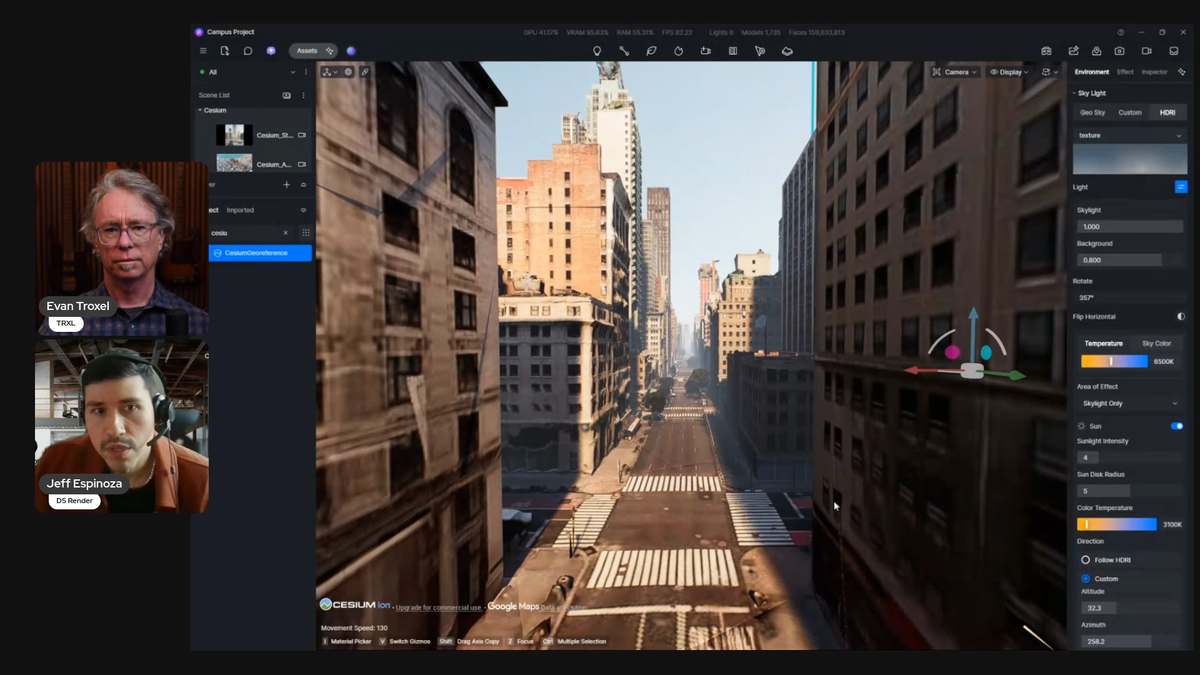
I started a new format on TRXL called the Feature Spotlight. The idea is simple: live, hands-on, no slides, no pitch. Just a real look at what a tool actually does, driven by someone who knows it inside and out.
Watch the Replay
My Takeaways
For the first one, I sat down with Jeff Espinoza from D5 Render to walk through two new features I'd been wanting to see in action: the Cesium integration and the AI material generator. Both of them solve problems I spent years fighting with back when I was building models and rendering for clients.
Here's what stood out.
Cesium: real-world site context, streamed in
The setup is familiar to anyone who's rendered a building. You connect your model to D5 (Jeff used a Revit model of a tower) and at first it's just your geometry floating in space. Traditionally, that's where the slog begins. You either build the surrounding site context by hand, by some really complicated Grasshopper workflow, or if you're really high tech you go fly a drone over the actual site to capture it.
To start with the Cesium integration, you just type in an address. D5 taps into Google Earth and streams the surrounding context straight into your scene — terrain, buildings, textures, all of it. Jeff pulled in downtown Chicago, then later dropped the same model into Midtown Manhattan by typing in "Empire State Building." No performance hit, no stuttering, even with huge datasets.
The word that matters here is streamed. None of that data lives on your machine. There are other workarounds to get Google Earth data into a model, but they all mean downloading heavy 3D files and bloating your project. D5 streams it live, which keeps everything lightweight, with the tradeoff that you need to be online while you work.
The detail I loved most was what amounts to a reverse section box. A void box. If the streamed-in context overlaps your proposed design — say you're a landscape designer replacing a park that already exists in the Google data — you carve out that section and drop your own model into the gap. You keep the real surroundings and lose the conflict.
And because it's all inside D5, you keep every post-processing feature: animated birds, clouds, lighting adjustments, accurate sun path studies for the actual site location. When you zoom down to street level you'll see the limits of a Google Earth import, but that's exactly where D5's AI style transfer steps in — a beauty pass that cleans up textures and lighting with a side-by-side comparison so you can see what changed instead of just trusting the software.
That comparison view took me right back to my own work. I made the call before every client meeting about how far to dial the rendering back, because clients get hung up on details. Soft look, shadows on, textures off — whatever kept the conversation on massing instead of a doorknob. Being able to apply a style transfer across multiple images for consistency, at any design phase, without committing too early? I would have killed for that.
AI material generator: the death of the seamless-texture grind
D5 splits its AI into two buckets: AI for production and AI for post-production. The material tools are for production — the stuff you're doing when you're in the thick of generating renderings. The style transfers and detail upscaling are post-production.
Start with a texture that has visible seams. One click on "make seamless" and the AI does it's magic to the edges and turns it into a usable material. Low-res image you found online? Upscale it. Then generate the missing channels (bump, reflections, shadow information) so a flat image picks up real material depth. Switch to clay mode and the material information is still there even with the base image removed. Every value stays editable afterward.
I laughed out loud at this part, because I remember exactly how painful seamless textures used to be. The round-trips to Photoshop, the offset filter, painting out the seams by hand, thing after thing after thing. What this really unlocks isn't just speed... it's the ability to play and experiment without being an expert Photoshop user babysitting file paths and mastering navigating the apps. It puts some joy back in the process.
Then Jeff showed AI Material Snap, which genuinely surprised me. Upload a material palette — or photos from the web or even a site visit — and D5 detects the individual materials in a flat 2D image. You select one, hit generate, and it builds a seamless, ultra-HD texture with all the channels. No hunting down the manufacturer's SKU, no checking resolution before you import.
Here's where my brain went: I can now collect images of textures I like — from photographs, not just texture libraries — and pull the material straight out of them, with the bump, reflection, and normal maps generated for me. It's like building a mood board you can actually render from. And because the AI handles it, you don't have to wait for an overcast day to avoid hard shadows in your captures. That constraint just disappears.
I mentioned during the demo that real-time rendering moves "rendering" from the end of the process into the middle of it. Rendering used to be the thing that showed up at a milestone. Now the iterating happens live, materials and all, and it becomes part of the design feedback loop. How do the materials feel? How does the space feel? You're answering those questions while you design, not after.
A few things worth knowing
A couple of practical notes came up that are worth repeating:
- AI you can steer. Most AI rendering is a black box — you write a prompt, you get a result, you're not sure what happened. D5's approach uses AI for material creation, scene lighting, and assets, but every result stays tweakable afterward with your own artistic eye. It's a nice balance of manual controls and automation.
- Your data stays yours. D5 doesn't use your inputs to train its AI models. For firms doing their due diligence on data security and authorship, that's a real consideration.
- Hardware is reasonable. It's ray-tracing-dependent, so it leans on your GPU and VRAM, but an NVIDIA 3060 (a card that's more than five years years old now) gives a comfortable balance of cost and performance. AMD cards are supported too.
- Real path tracing is there. Beyond the default ray tracing, you can enable custom path-tracing settings for final renders, plus export traditional channels (material ID, object ID, etc) for Photoshop — and a dedicated AI post channel that powers in-scene inpainting. Jeff added water and trees to a finished park render right in the image, no trip back to the 3D model required.
Where to see it
If you want to get your hands on the Cesium integration and the AI material generator yourself, head to d5render.com. There's a community version you can download and play with.
If you'll be at the AIA Conference on Architecture in San Diego, June 10–13, D5 has a booth and Jeff will be running demos in person. They've also got D5 Render 3.1 shipping by the end of the month, along with D5 Lite — a plugin that lives inside Revit and Rhino with a live preview mode and built-in AI prompting for early conceptual design, so you can test ideas before committing them to your model.
Big thanks to Jeff for taking the time to show this off. This was exactly the kind of behind-the-scenes look I wanted to kick the Feature Spotlight off with.